
Key Takeaways:
- For UN jobs that use Inspira, submit the online application for the specific vacancy; a saved draft does not count.
- Support each job-requirement answer with examples that match your work and education records.
- Check your answers and attachments before submitting; submitted applications cannot be edited.
- “Under Consideration” means recruitment is ongoing, not that you have been shortlisted.
Which organizations use Inspira?
Inspira serves the UN Secretariat, including departments, offices, regional commissions and many peace operations. Here’s a list of organizations using Inspira:
- United Nations Secretariat
- United Nations Office at Geneva
- Office of the United Nations High Commissioner for Human Rights
- United Nations Environment Programme
- Counter-Terrorism Committee Executive Directorate
- Executive Office of the United Nations Secretary-General
- Independent Institution on Missing Persons in the Syrian Arab Republic
- Independent Investigative Mechanism for Afghanistan
- Independent Investigative Mechanism for Myanmar
- International Civil Aviation Organization
- International Civil Service Commission
- International Court of Justice
- International Residual Mechanism for Criminal Tribunals
- International Seabed Authority
- International Trade Centre
- International, Impartial and Independent Mechanism for Syria
- Office of Administration of Justice
- Office of the High Representative for the Least Developed Countries, Landlocked Developing Countries and Small Island Developing States
- Office of the Special Adviser on Africa
- Office of the Special Coordinator on Improving the United Nations Response to Sexual Exploitation and Abuse
- Office of the Special Envoy for the Horn of Africa
- Office of the Special Envoy of the Secretary-General for the Great Lakes Region
- Office of the Special Envoy of the Secretary-General for Yemen
- Office of the Special Representative of the Secretary-General for Children and Armed Conflict
- Office of the United Nations Special Coordinator for Lebanon
- Office of the United Nations Special Coordinator for the Middle East Peace Process
- UN Support Office in Haiti
- United Nations Assistance Mission in Afghanistan
- United Nations Conference on Trade and Development (UN Trade and Development)
- United Nations Convention to Combat Desertification
- United Nations Department for General Assembly and Conference Management
- United Nations Department of Economic and Social Affairs
- United Nations Department of Global Communications
- United Nations Department of Management Strategy, Policy and Compliance
- United Nations Department of Management Strategy, Policy and Compliance — Business Transformation and Accountability Division
- United Nations Department of Operational Support
- United Nations Department of Peace Operations
- United Nations Department of Political and Peacebuilding Affairs
- United Nations Department of Political and Peacebuilding Affairs and Department of Peace Operations
- United Nations Department of Safety and Security
- United Nations Economic and Social Commission for Asia and the Pacific
- United Nations Economic and Social Commission for Western Asia
- United Nations Economic Commission for Africa
- United Nations Economic Commission for Europe
- United Nations Economic Commission for Latin America and the Caribbean
- United Nations Global Service Centre
- United Nations Human Settlements Programme
- United Nations Information Centres
- United Nations Interim Force in Lebanon
- United Nations Interim Security Force for Abyei
- United Nations Interregional Crime and Justice Research Institute
- United Nations Joint Staff Pension Fund
- United Nations Military Observer Group in India and Pakistan
- United Nations Mine Action Service
- United Nations Mission in South Sudan
- United Nations Multidimensional Integrated Stabilization Mission in the Central African Republic
- United Nations Office at Nairobi
- United Nations Office at Vienna
- United Nations Office for Digital and Emerging Technologies
- United Nations Office for Disarmament Affairs
- United Nations Office for Disaster Risk Reduction
- United Nations Office for Outer Space Affairs
- United Nations Office for the Coordination of Humanitarian Affairs
- United Nations Office of Counter-Terrorism
- United Nations Office of Information and Communications Technology
- United Nations Office of Internal Oversight Services
- United Nations Office of Legal Affairs
- United Nations Office on Drugs and Crime
- United Nations Office to the African Union
- United Nations Ombudsman and Mediation Services
- United Nations Operations and Crisis Centre
- United Nations Organization Stabilization Mission in the Democratic Republic of the Congo
- United Nations Peacekeeping Force in Cyprus
- United Nations Regional Office for Central Africa
- United Nations Regional Service Centre at Entebbe
- United Nations Relief and Works Agency for Palestine Refugees in the Near East
- United Nations Resident Coordinator System
- United Nations Support Mission in Libya
- United Nations Support Office in Haiti
- United Nations Support Office in Somalia
- United Nations Sustainable Development Group System-Wide Evaluation Office
- United Nations System Chief Executives Board for Coordination
- United Nations Technology Bank for the Least Developed Countries
- United Nations Truce Supervision Organization
- United Nations Verification Mission in Colombia
- United Nations Youth Office
- Universal Postal Union
Membership of the UN system alone does not mean an employer uses Inspira. UNICEF, UNDP and WHO can use other portals, and some employers have separate routes for particular appointments. Always follow the application link in the vacancy notice.
Before you begin
Have these records ready so you do not have to reconstruct your history halfway through the form:
- Your employment dates, job titles, employer details and supervisor contacts.
- Education dates, qualification titles and academic documents.
- Professional referees who have agreed to be contacted.
- Any additional evidence requested in the vacancy’s Special Notice.
For each required qualification, note the role or course, dates and example that show you meet it. If the notice allows different education-and-experience combinations, check one complete route rather than combining parts of different routes.
Keep a separate document for your written answers. You can draft and proofread there, then paste the final text into Inspira. Save each completed entry in the system as you go.
The Inspira application, step by step
Follow this sequence for each vacancy. You may reuse information from an earlier application, but each new opening needs its own submission.
1. Read the vacancy before starting
Start with the job notice, not the form. Check whether you meet the required qualifications before spending time on an application.
- Check the title, grade, duty station, department and Job Opening number. Use the UN salary calculator to compare pay by grade and duty station.
- Separate required education, experience and languages from desirable qualifications.
- Read the Special Notice for eligibility restrictions and extra documents.
- Note the closing date and select Apply Now to reach the recruitment system.
UN Careers notices specify a deadline of 11:59 p.m. New York time on the stated date. Convert that time for your location using the date of the deadline, since daylight saving can change the offset. Leave time for login or upload problems.6
2. Sign in and create the application
If you already have an Inspira account, use it. External applicants creating their first account choose Create account here; UN staff should use the account required for their staff status.
- Register your name, email, password and date of birth. Check the birth date carefully: it cannot be changed after account creation. Keep the generated User ID.
- Complete the mandatory fields in My Profile, including contacts and nationality/residence details. External applicants are asked for a passport biographical page; the guide permits another travel document or photo ID if a passport is not readily available. Upload it only through the official system.2
- Start an application for the intended vacancy. Choose a new application or copy an existing one, then check everything carried over.
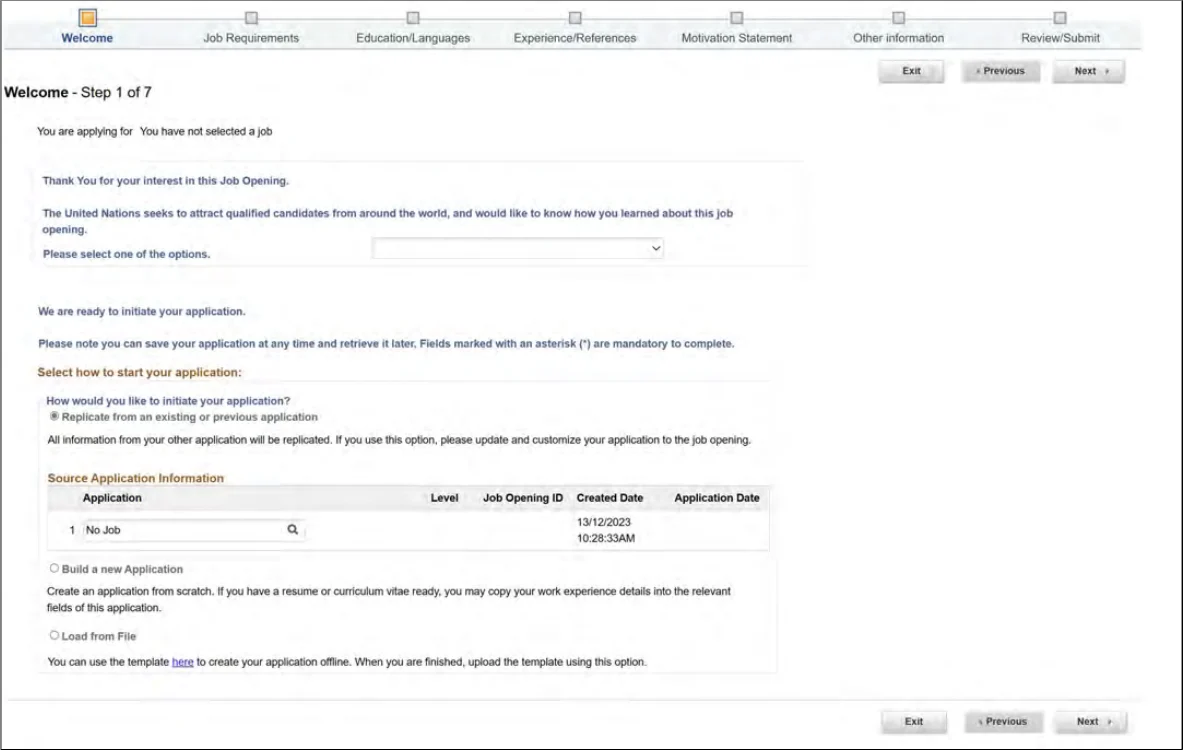
A general draft under My Applications → Create Draft Application can help you prepare. It is not an application to a vacancy until it is linked to that Job Opening and submitted.
3. Answer the job-requirement questions
The Job Requirements section asks how you meet the vacancy’s criteria. These questions are also called the Job Fit Questionnaire. Answer each one directly, using evidence that a reviewer can find in your work or education history.
- State when and where you gained the relevant experience.
- Explain what you personally did, rather than describing the team’s general responsibilities.
- Add a concrete example and a result or scale where you can substantiate it.
For a project-monitoring question, for example, identify the employer and dates, then explain which indicators you tracked, how you checked submissions and what reports you produced. “See my CV” leaves the question unanswered.
Follow the character counter in the form. Do not count overlapping employment twice or present unrelated duties as qualifying experience. If you do not meet a required criterion, answer honestly; enthusiasm cannot replace the qualification.2
4. Add your education and languages
Use Add Education Details to enter your high-school diploma and university qualifications. For each entry, check the institution, degree title, study dates and whether the qualification was obtained. Mark ongoing study accurately.
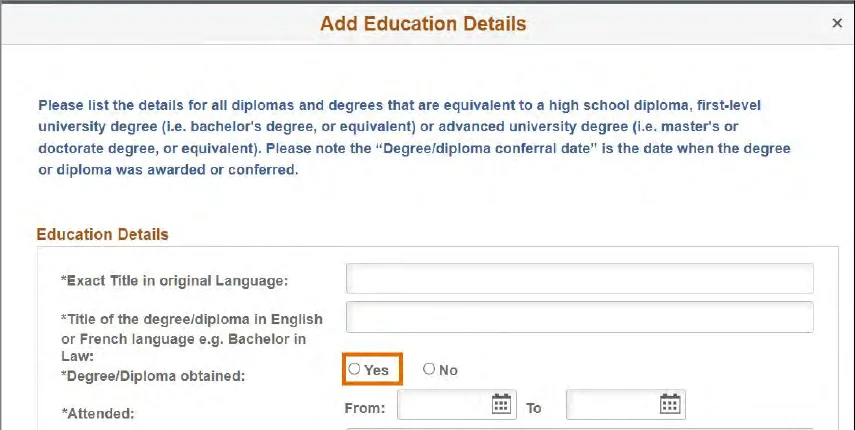
- Put short courses and certificates in their designated section. The Applicant Guide allows up to six relevant short-term certificates or diplomas.
- Search for your institution before using manual entry. The FAQ below explains the missing-university option.
- Enter the required languages, including your mother tongue, and assess each skill separately.
In the Applicant Guide, fluency means fluent in reading, writing, speaking and understanding. Knowledge means confident or fluent in at least two of those areas. Use the labels in the live form and be prepared for your language ability to be tested.2
5. Complete your work history and references
Under Experience/References, create an entry for each relevant role. Enter the dates, employer, location, employment type and supervisor details. Use the current-job option where applicable, and answer the government/UN employment questions accurately.
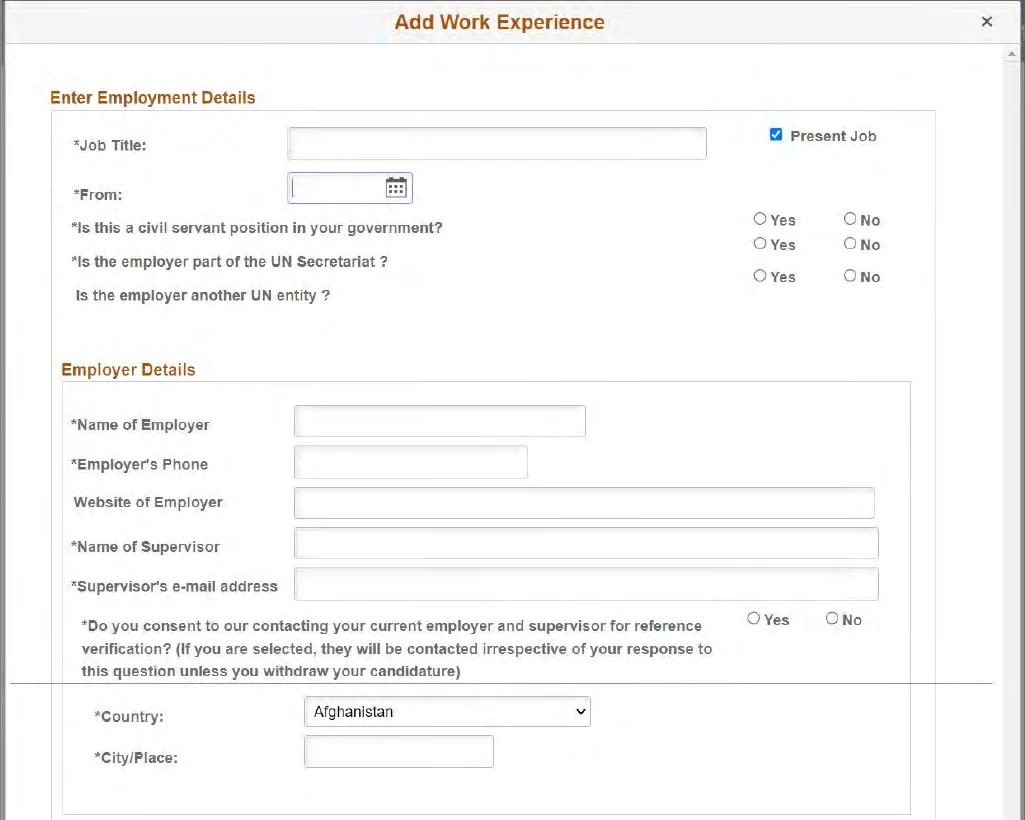
Use Summary of duties for your main responsibilities and contributions, including supervisory responsibilities where relevant. The illustrated form allows 1,000 characters; follow the live counter if it differs. Keep fuller examples for the Job Requirements answers.
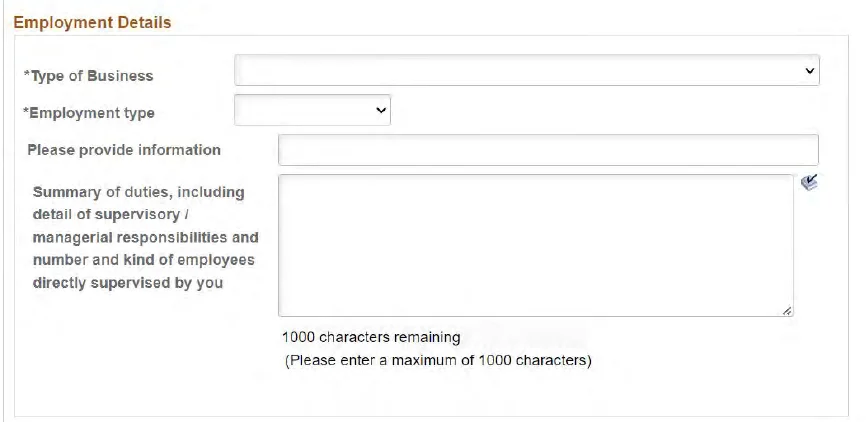
A duties summary might read: “Coordinated monthly reporting from five programme partners; checked indicator submissions against supporting records; resolved missing data with focal points; prepared the consolidated progress brief.” This is an illustrative example, not wording to copy without matching experience.
For references, choose people who know your work, such as supervisors, colleagues or academic supervisors. Ask permission and check their contact details. Friends and relatives are not professional referees.
You may indicate that your current employer should not be contacted during the process. If you are selected, current-employer and supervisor verification is still required.2
6. Write your motivation and attach the documents
The motivation statement explains why you want this particular role and what you would contribute. OCHA’s application workshop gives a limit of 2,000 characters including spaces; check the live form’s counter, rather than treating that as a word limit.3
- Explain your interest in the function or office.
- Connect one or two relevant strengths to the work in the notice.
- Explain a career or location change if it would otherwise be unclear.
You do not need to repeat your entire employment history. Use the space to connect your experience to this opening.
Next, complete the declarations in Other information and upload the documents requested by the form and notice. Check the permitted formats and sizes, then reopen or preview each attachment to confirm it is readable. If a separate cover letter is required, provide it as well as completing the mandatory motivation field.
7. Review, certify and submit
Before submitting, compare your application with the vacancy one final time:
- Do your answers address every required criterion?
- Do employment dates, qualifications and examples agree across sections?
- Are the declarations complete and requested attachments present?
- Are the email address and Job Opening number correct?
Select Submit Application, read the terms and complete Certify and Submit Application. Keep the confirmation email and check My Applications. A status other than Draft or Withdrawn confirms that the application was submitted and received; check spam if the email is missing.1
A saved draft is not a submission. Once submitted, the application cannot be edited. Withdrawing does not let you reapply to the same opening, so do not use withdrawal to correct a mistake. Keep a copy of the notice and final answers for possible assessments.
Do you need a CV, PHP or P.11?
These terms describe different things. For an Inspira vacancy, the structured online application is the main submission; an attached CV does not replace its fields.
- PHP: a name still used for the structured personal-history application containing education, employment and other records.
- P.11: a separate personal-history form used in some recruitment processes. Supply one only if the actual instructions request it.
- CV and supporting files: attach what the form and vacancy request, without leaving mandatory online sections blank.
If you use Inspira’s offline application template, download the current version from the Application Guidelines tile or Welcome step. Load it into Inspira, review the imported information and complete submission online. Sending or saving the file alone does not submit an application.2
What the Inspira application statuses mean
Open My Applications to check your record. The labels describe recruitment progress; they do not predict your chances of selection.2
| Status | How to read it |
|---|---|
| Draft | Saved but not submitted. Complete and certify it before the deadline. |
| Applied | Submitted; the application is being screened through Inspira. |
| Under Consideration | Screening has taken place and recruitment is ongoing. It does not tell you whether an interview is coming. |
| Recruitment Completed | The process ended with another applicant selected. |
| Selected | You were selected. Read the formal notification and respond as instructed. |
| Rostered | Your record shows roster placement. Check the notification and applicable roster rules; it is not a job offer. |
| Filled from Roster | The opening was filled through selection of a rostered applicant. |
| JO Cancelled | The job opening was cancelled. |
| Withdrawn | You withdrew the application. Do not use this as a way to edit and resubmit. |
UN roster rules: updated October 2025
A roster is a pool of candidates approved for particular functions and levels. Membership can be used for future recruitment, but it is not a job offer.
- What the older guide said: the 2024 Applicant Guide described roster placement for candidates recommended for selection and roster placement, including candidates who were not selected for the advertised post. It did not mean that everyone interviewed joined a roster.
- What the current policy says: effective 1 October 2025, ST/AI/2025/2 describes two routes: approval through a generic roster-building job opening, or a position-specific competition in which the candidate is endorsed by a central review body, approved for selection and takes up the post.4
- What this means for you: being interviewed, or being recommended but not selected for a specific vacancy, does not by itself give you roster membership under those routes. Check your formal notification and My Roster Memberships in Inspira.
The policy sets a four-year expiration period, or six years for women. The start date depends on the route and subsequent employment, so use your membership record and the policy to check validity.
How long does UN recruitment take?
Expect a process measured in months, but there is no reliable average waiting time to your first email. The Secretary-General’s 2024 report A/79/566, paragraphs 54–56, recorded an average recruitment duration of 162 days in 2023 for the specified P-3–D-1 and FS-4–FS-7 processes. It reported 179 days at headquarters and 134 in field missions, against a 120-day target.5
The figures describe historical recruitment processes for those grades. They do not measure the wait from an individual application to an interview, or cover internships and consultancies. The report attributes delays partly to financial conditions; the 120-day target is not a response deadline for each applicant.
After submission, recruitment generally moves through these stages:
- Screening against the vacancy requirements.
- Evaluation by the hiring team.
- An assessment and/or interview, if you are invited.
- A selection decision and the necessary checks.
An assessment may be a written exercise, technical task or competency-based interview. Follow the invitation for its format and deadline; a portal status alone does not establish that you have reached that stage.
The current selection instruction requires notification within 14 days of the selection decision, not within 14 days of applying.4 Continue other applications while waiting. Keep a record of the vacancy, submission date and correspondence so you can prepare if contacted months later.
If the form or submission fails
- Protect your draft: Keep a copy of your answers outside Inspira before retrying a failed entry.
- Check the specific problem: For an upload, use the permitted format and size in the live control and confirm the file appears afterward. For a missing application, check the account and My Applications date filter.
- Record the error: Note the Job Opening number, exact error, time and browser. Take a screenshot with unrelated personal information removed.
- Contact official support: Check its Compatible Browsers guidance and choose the relevant enquiry category.7
A support request does not replace a submitted application or guarantee a deadline extension.
The UN does not charge an application or recruitment fee. A request to pay to secure an interview or appointment is a warning sign.1
Frequently Asked Questions
My university is missing from the list. What should I do?
Search the institution lookup carefully before using “Other/I cannot find my school”. The Applicant Guide permits manual entry after confirming that the institution is accredited to issue that degree. Upload supporting academic documents as requested. This institution-name fallback is different from choosing “Other” as your field of study; a specific vacancy or examination may give stricter instructions for that field.
Do I still need the motivation statement if a cover letter is requested?
Complete every mandatory field in Inspira and supply any separate document explicitly required by the vacancy. A requested cover letter is not permission to leave a required motivation box blank. Keep the short statement focused on the role; use the attachment to address any additional instructions.
Why has an old application disappeared from My Applications?
Check the date or search-period filter first, and confirm that you are using the same account as for submission. The official application-management demonstration shows that the list can be limited to recent applications. Keep your job-opening number and confirmation email so support can identify the record if changing the filter does not resolve it.